How to Make Simple 3D Text Effect in Photoshop 2026
Introduction to 3D Text Effect in Photoshop
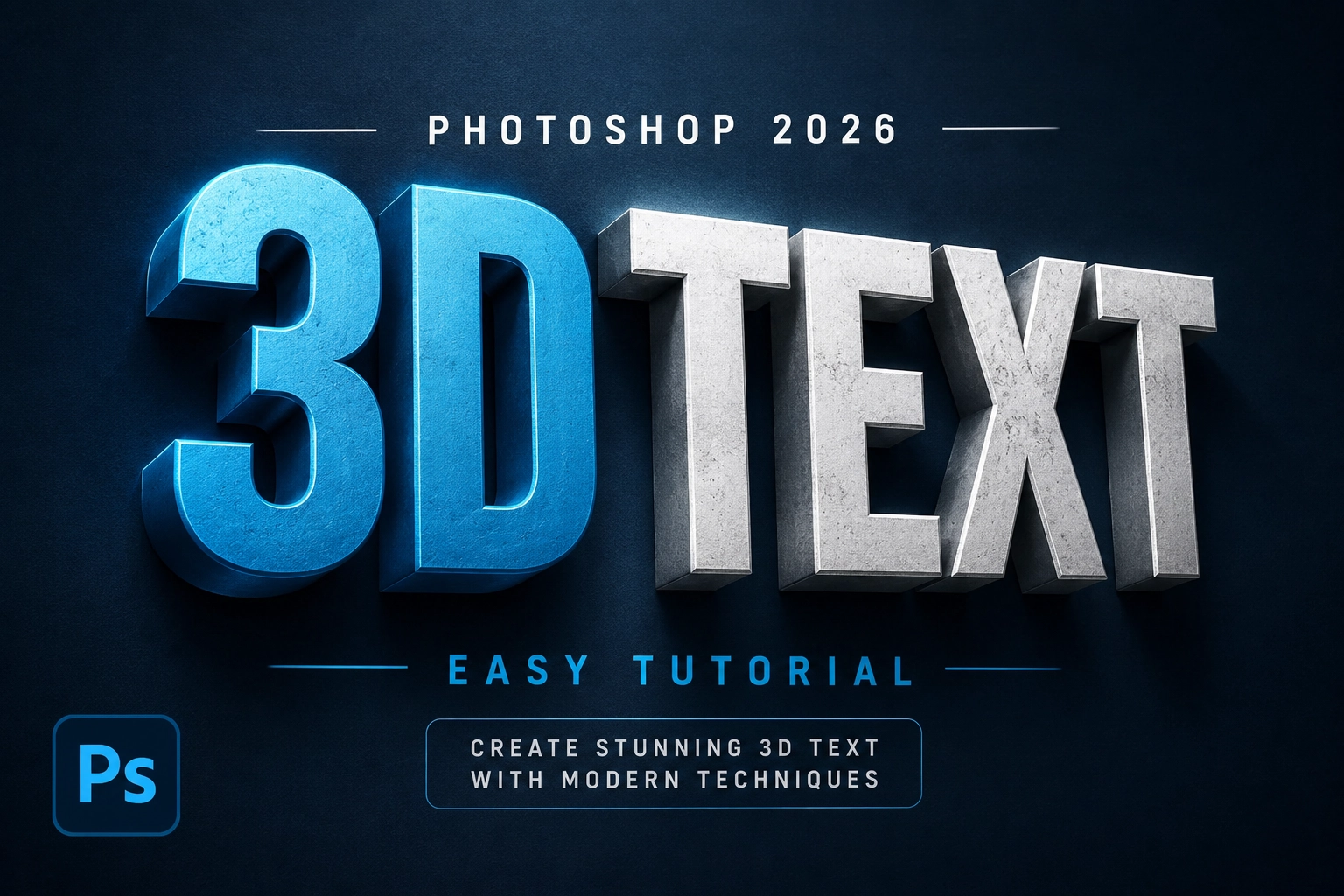
Welcome to the world of 3D Text Effects in Photoshop, where text leaps off the page and captures your attention like never before. Although Photoshop’s dedicated 3D workspace has evolved over the years, creating impressive 3D text effects is still possible in Photoshop 2026 using modern techniques such as Layer Styles, Smart Objects, gradients, and lighting effects.
Creating a 3D text effect in Photoshop is a great way to make your graphic designs stand out. Whether you’re designing social media graphics, YouTube thumbnails, posters, website banners, or marketing materials, adding depth and dimension to your text can make your designs more engaging and visually appealing.
In this guide, we’ll show you how to create a simple yet professional-looking 3D text effect in Photoshop 2026. From building depth and applying realistic shadows to adding textures and color, you’ll learn techniques that can transform ordinary text into eye-catching typography.
As you embark on your journey to mastering 3D text effects in Photoshop, you’ll discover that creating dimensional typography is easier than it may seem. With a bit of creativity and practice, you can create stunning text effects that bring your designs to life.
Importance of Mastering the 3D Text Effect in Photoshop
Mastering the 3D Text Effect in Photoshop is an essential skill for any graphic designer, content creator, or digital artist. It not only helps your designs stand out but also gives you a creative advantage in today’s highly competitive design industry.
In today’s digital world, where visual content dominates social media, advertising, and online marketing, the ability to create eye-catching 3D text effects is incredibly valuable. Whether you’re designing YouTube thumbnails, social media graphics, posters, website banners, or promotional materials, realistic 3D typography can help communicate your message more effectively, capture attention, and leave a lasting impression.
Furthermore, mastering 3D text effects in Photoshop can open up new creative and professional opportunities. It can strengthen your portfolio, help you attract more clients, and increase your value as a designer. With Photoshop 2026’s modern tools, such as Smart Objects, advanced layer styles, and AI-assisted workflows, creating professional-looking 3D text effects has become more accessible and flexible than ever before.
Step-by-Step Guide to Creating a Basic 3D Text Effect
Now that you understand the importance of mastering the 3D Text Effect in Photoshop, it’s time to get started. Here’s a step-by-step guide to help you create your first basic 3D text effect using modern Photoshop techniques.
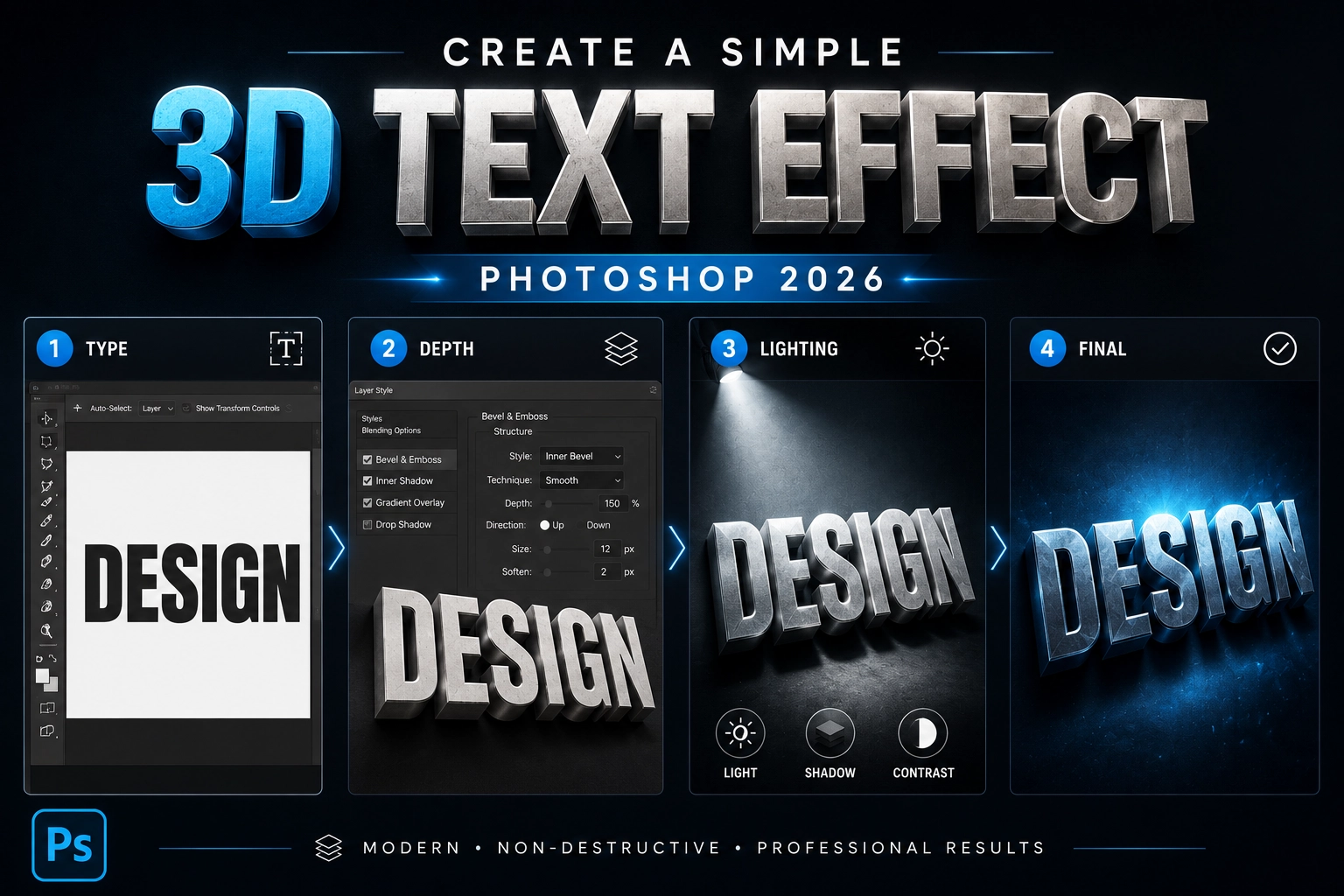
First, create a new document in Photoshop and select the Type Tool from the toolbar. Type your desired text and choose a bold, thick font for the best results, as heavier fonts work particularly well for creating dimensional effects.
Next, convert your text layer into a Smart Object by right-clicking on the text layer and selecting Convert to Smart Object. Then, use a combination of Layer Styles, including Bevel & Emboss, Inner Shadow, and Gradient Overlay, to simulate depth and create a realistic 3D appearance. You can duplicate the text layer and slightly offset it to create additional thickness and depth if needed.
Finally, add realistic lighting and shadows to enhance the effect. Use Drop Shadow, Inner Shadow, and subtle highlights to create dimension and make the text stand out. You can also apply gradients, textures, and adjustment layers to give your 3D text a more polished and professional look.
With Photoshop 2026, these non-destructive techniques offer greater flexibility and are often faster and easier to edit than the older 3D workspace methods.
Enhancing Your 3D Text Effect with Lighting and Shadows
Lighting and shadows play a crucial role in creating a realistic and compelling 3D Text Effect in Photoshop. They can add depth, contrast, and dimension to your text, making it pop off the page.
In the 3D panel, you can add a new light source by clicking on the ‘Add New Light to Scene’ button. You can adjust the brightness, color, and positioning of the light source to create different lighting effects.
Shadows can be adjusted in the 3D panel as well. You can change the shadow softness, darkness, and distance to create more depth and realism.
Remember, the key to mastering lighting and shadows is experimentation. Don’t be afraid to play around with different settings and see what works best for your design.
Adding Texture and Color to Your 3D Text Effect
Lighting and shadows play a crucial role in creating a realistic and compelling 3D text effect in Photoshop. They add depth, contrast, and dimension to your typography, making it appear more realistic and visually striking.
In Photoshop 2026, you can create realistic lighting effects using a combination of Gradient Overlays, Inner Shadows, Drop Shadows, and subtle highlights. Experiment with the angle, opacity, and blending modes of these effects to simulate different lighting directions and create a convincing sense of depth.
Shadows are equally important for enhancing realism. Adjust the shadow’s distance, size, and opacity to create soft or dramatic effects depending on your design. You can also duplicate the text layer and apply blur effects to create more natural-looking shadows and improve the overall depth of your composition.
For even more realistic results, consider adding subtle textures, reflections, and color variations to your text. Small details in lighting and shadow can dramatically improve the final appearance of your 3D effect.
Remember, the key to mastering lighting and shadows is experimentation. Don’t be afraid to try different settings, blending modes, and layer styles to discover what works best for your design.
Advanced Techniques for 3D Text Effect in Photoshop
Once you’ve mastered the basics, you can start experimenting with more advanced techniques to create even more impressive 3D text effects in Photoshop.
One powerful technique is using the Bevel and Emboss feature in the Layer Style panel. By adjusting the depth, size, contour, and highlight settings, you can create highly detailed and sculpted typography that looks more realistic and professional.
Another advanced technique is using the Displace Filter. This allows you to warp or distort your text so that it follows the contours of another image or texture. It’s an excellent way to create effects such as text on fabric, concrete, metal, or uneven surfaces.
You can also experiment with Gradient Maps, Texture Overlays, and Blending Modes to add additional depth, reflections, and realistic materials to your text. Combining these effects with Smart Objects gives you the flexibility to edit and refine your design non-destructively.
For even more creative possibilities, Photoshop 2026’s Generative Fill can be used to create custom backgrounds, extend compositions, or generate additional design elements around your 3D text, helping you build more dynamic and eye-catching artwork.
These advanced techniques can take your 3D text effects to the next level, so don’t be afraid to experiment, combine different methods, and push your creativity further.
Conclusion and Recap on Mastering 3D Text Effect in Photoshop
Mastering 3D text effects in Photoshop is a journey of creativity, experimentation, and continuous learning. It’s a valuable skill that can significantly enhance your designs and help you stand out as a graphic designer, content creator, or digital artist.
Remember, the key to mastering this technique is practice and exploration. Don’t be afraid to experiment with different fonts, layer styles, lighting effects, textures, and color combinations. Photoshop 2026 offers more creative possibilities than ever before, and combining traditional techniques with modern features such as Smart Objects and AI-assisted workflows can help you create stunning and professional-looking typography.
Hopefully, this guide has provided you with a solid foundation for creating impressive 3D text effects in Photoshop. Keep practicing, continue experimenting, and before long, you’ll be designing eye-catching 3D typography with confidence and developing your own unique style.
If you’re looking for professional photo editing services, Mister Clipping Path is here to help. Our team of experienced photo editors and designers specializes in high-end image editing, creative photo manipulation, and custom graphic design solutions for businesses, photographers, and agencies worldwide. Whether you need simple edits or complex creative projects, we’re ready to give your designs the professional touch they deserve.


Leave a Reply
Want to join the discussion?Feel free to contribute!