A Step-by-Step Guide to Combine Animal and Human Face in Photoshop 2026
When it comes to digital art, Adobe Photoshop remains an industry standard. Its wide array of tools and features allows creatives to produce everything from simple edits to complex, surreal artworks. In Photoshop 2026, traditional compositing tools work alongside AI-assisted features such as the Object Selection Tool, Generative Fill, and the Remove Tool, making it easier to isolate subjects, develop seamless transitions, and clean up unwanted details. One such genre of digital art is the creation of animal-human hybrids in Photoshop. This unique blend of reality and imagination introduces a new perspective to character design and portraiture. However, mastering this art requires not just creativity, but also a deep understanding of selections, layers, masks, lighting, texture, and color.
Over the years, Photoshop has evolved to become more user-friendly, with smarter workflows and tutorials available for different skill levels. Yet, for an aspiring digital artist, the wide range of tools and settings can still be overwhelming. It is not just about knowing which button to click, but also understanding how to use these tools in tandem to achieve the desired result. Modern compositing also benefits from Smart Objects, layer masks, and Adjustment Layers, which allow artists to experiment and refine their work without permanently altering the original images. Learning Photoshop is akin to learning a new language. It takes time, practice, and patience.
The fusion of digital art and photography through Photoshop opens up a world of possibilities. It allows artists to move beyond the limits of a single photograph and create pieces that push the boundaries of creativity. Features such as Generative Fill and Generative Expand can help artists explore missing image areas and compositional variations, while masks and Adjustment Layers keep the artwork flexible and editable. The creation of Photoshop animal-human hybrids is a testament to this. It blends the real and the imagined, creating a piece of art that is both striking and thought-provoking.
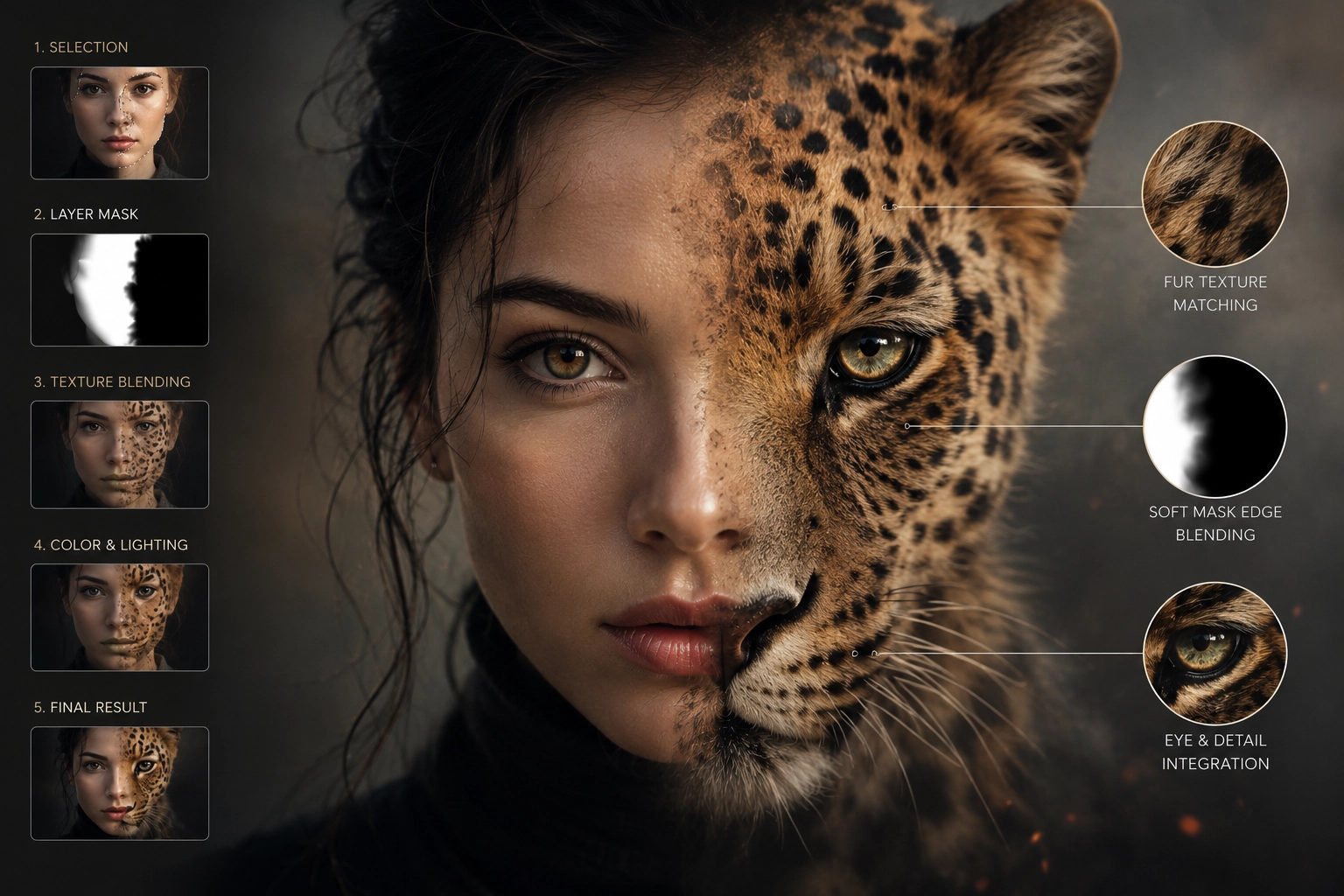
Importance of Mastering Photoshop for Creating Animal Human Hybrids
Creating a Photoshop animal-human hybrid requires a strong understanding of the software. It involves detailed selection, alignment, masking, and blending work to combine multiple photos into a single, cohesive image. In Photoshop 2026, AI-assisted features such as the Object Selection Tool can speed up the process of isolating faces, fur, and other visual elements, while layer masks allow artists to refine edges and transitions without permanently removing image pixels. Whether you are a professional artist or a hobbyist, mastering the art of creating animal-human hybrids can significantly enhance your compositing, retouching, and digital art skills.
The process of creating a Photoshop animal-human hybrid requires a deep understanding of the software’s features, from selection tools and layer masks to blending modes, Smart Objects, and Adjustment Layers. Smart Objects help preserve the original image quality when source photos are resized, transformed, or filtered, while Adjustment Layers make it easier to match color, contrast, and lighting without directly altering the original images. The Remove Tool can clean up unwanted details, and Generative Fill can assist with rebuilding small missing areas or developing smoother visual transitions. However, realistic results still depend on carefully matching lighting, shadows, perspective, and textures—elements that bring depth and credibility to the final creation.
Moreover, creating animal-human hybrids is not just about the technical aspects of Photoshop. It also involves creativity, observation, and imagination. AI-assisted tools can help artists explore variations or refine difficult areas, but the artist must still decide how the human and animal features should interact, which characteristics to emphasize, and what mood the finished character should communicate. It is about envisioning a character that does not exist in the real world and bringing it to life through digital art. This creative problem-solving ability is a valuable skill that can be applied in many areas, from professional character design and advertising artwork to personal creative projects.
Steps to Create an Animal Human Hybrid using Photoshop
Creating a Photoshop animal-human hybrid can be challenging, but with the right steps, it becomes an exciting journey of creativity and learning. The first step is to gather your resources. You will need high-resolution images of the human face and the animal features you want to incorporate. It is essential to choose photos with compatible lighting, perspective, facial angle, and image quality to ensure a natural blend. Before editing, place the source images on separate layers and convert the animal layer into a Smart Object so it can be resized, transformed, or warped without permanently changing the original image data.
The next step is to use Photoshop’s Object Selection Tool or Select Subject to isolate the parts of the animal image you wish to incorporate into the human portrait. This could be anything from the eyes, nose, or mouth to the texture of the skin or fur. Refine complex edges in the Select and Mask workspace, then apply the selection as a layer mask instead of permanently deleting pixels. Use Free Transform or Transform Warp to align the animal features with the proportions and contours of the human face. Paint carefully on the layer mask with a soft, low-opacity brush to create smooth transitions, paying close attention to the direction of the light, facial structure, and texture of the skin or fur.
The final step involves fine-tuning your creation. Use clipped Adjustment Layers to match the color, contrast, and lighting of the animal features with the original human image, and add carefully placed shadows and highlights to create depth. Photoshop 2026’s Harmonize feature can provide an initial match for lighting, color, tone, and shadows, while Generative Fill may help repair small gaps or incomplete transition areas. These AI-assisted results should be reviewed and refined manually for consistency. Instead of relying heavily on the Smudge Tool, refine harsh edges with layer masks and controlled brushwork to preserve realistic skin and fur detail. It is also advisable to zoom out frequently, flip the canvas occasionally, and review the image at different magnification levels to check the overall balance and make necessary adjustments.
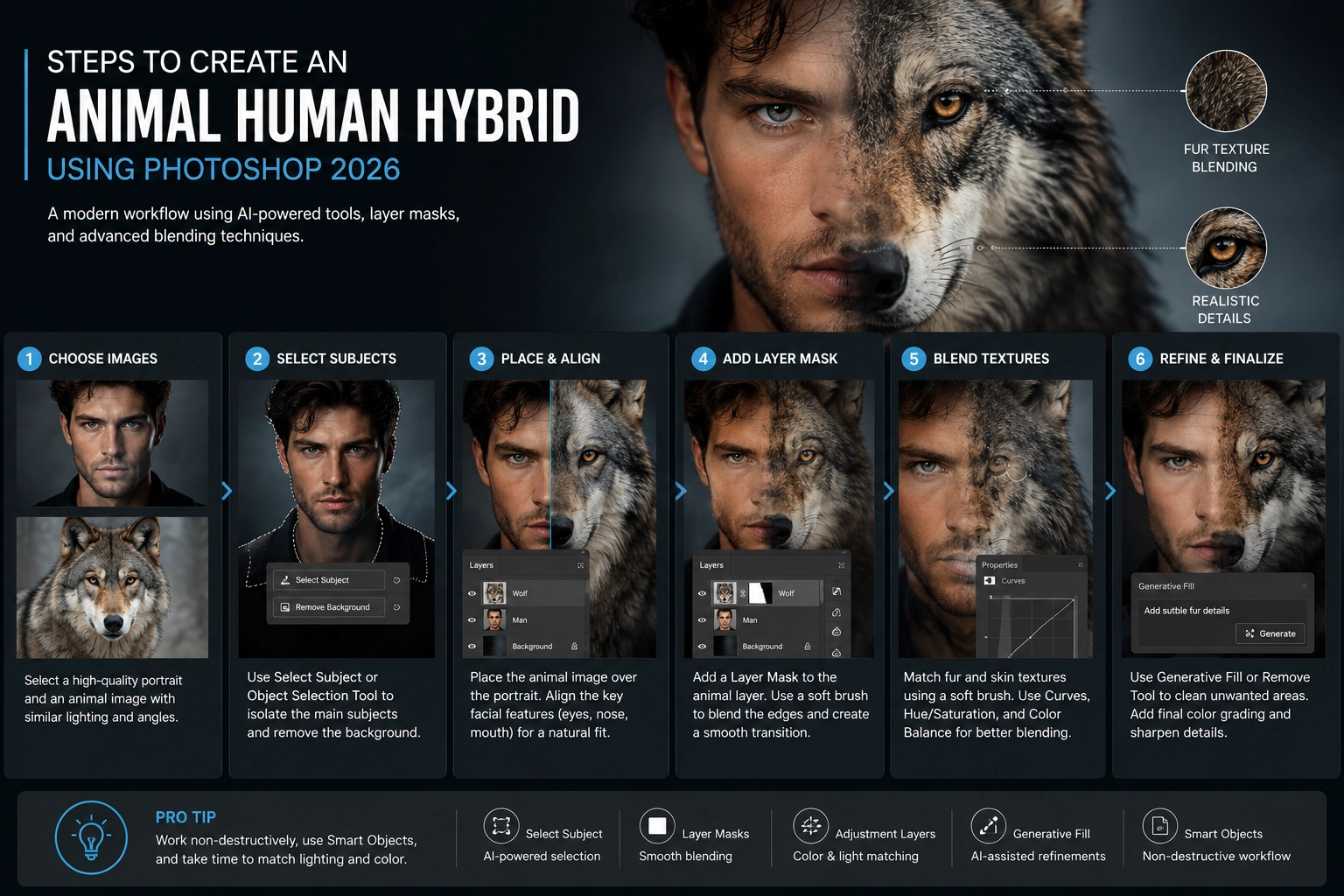
Detailed Face Morphing Tutorial for Human Animal Portrait Creation
Creating a successful Photoshop animal-human hybrid involves a detailed process of face morphing. This is a critical step in the process of human-animal portrait creation, and it requires careful attention to detail and patience. Photoshop 2026 combines precise selection, transformation, and masking tools with optional AI-assisted features, but the quality of the result still depends on careful alignment and manual refinement. Let’s dive into a step-by-step tutorial to understand this process better.
Firstly, open the human and animal images in Photoshop and place them in the same document on separate layers. Use the Object Selection Tool or Select Subject to create an initial selection, then isolate the animal features you want to morph into the human face. This may include the eyes, nose, muzzle, ears, or sections of fur. Refine the selection in the Select and Mask workspace, copy the selected features onto a new layer above the human portrait, and convert that layer into a Smart Object before transforming it. This preserves the original image data and makes later adjustments easier.
Next, reduce the opacity of the copied layer so you can see the underlying human face. This will help you align key landmarks such as the eyes, nose, mouth, cheekbones, and jawline. Use Free Transform to scale, rotate, and reposition the animal features until they match the shape and proportions of the human face. For more detailed adjustments, use Transform Warp to reshape the layer along the natural contours of the face without permanently altering the Smart Object’s original content.
After aligning the features, increase the layer opacity back to 100%. Now comes the blending process. Add a layer mask and use a soft, low-flow brush to paint with black, gradually hiding parts of the animal layer and revealing the human face underneath. Paint with white whenever you need to restore masked details. Work gently around the eyes, nose, hairline, and edges of the fur to create a smooth transition while preserving important texture. If a small gap or incomplete area remains after masking, Generative Fill may be used to create a starting repair, but the generated result should be reviewed and refined manually to match the surrounding anatomy, lighting, and texture. Layer masks allow areas to be hidden or restored without deleting the original pixels.
Advanced Digital Art Fusion Techniques
Mastering the art of creating Photoshop animal-human hybrids involves learning advanced digital art fusion techniques. These techniques take your creations to the next level by improving the relationship between facial structure, texture, color, light, and shadow. A non-destructive workflow also makes it easier to revisit individual corrections without damaging the original human or animal images.
One such technique is Dodge and Burn. This technique adds contrast and depth by selectively lightening and darkening specific areas of the image. Instead of applying the Dodge and Burn Tools directly to the image pixels, create two Curves Adjustment Layers—one to brighten and another to darken—and use their layer masks to paint the effects gradually with a soft, low-flow brush. This gives you greater control over highlights around the eyes and nose, as well as shadows beneath the muzzle, cheekbones, and fur. Another technique is Frequency Separation, which separates broad color and tonal information from fine texture detail. This is particularly useful when blending animal fur or skin texture with a human face, but it should be applied carefully so the portrait retains natural pores, fur strands, and facial detail. Curves Adjustment Layers and masks provide an editable alternative to applying permanent tonal changes directly to the source layer.
Yet another technique is the use of Adjustment Layers. These layers allow you to apply color correction, brightness, contrast, and tonal changes without permanently affecting the original image layers. Use Curves or Levels to match brightness and contrast, Hue/Saturation to control individual colors, and Color Balance to bring the human and animal elements into the same visual environment. Clip each Adjustment Layer to the animal-feature layer when you want the correction to affect only that element. Neural Filters can also assist with subtle portrait cleanup, skin-tone refinement, or minor image-quality issues, provided the result is output to an editable layer and refined manually. These methods are particularly useful when matching the color, lighting, and overall mood of the animal features with the human face.

Conclusion: Mastering the Art of Photoshop Animal Human Hybrids
Mastering the art of creating Photoshop animal-human hybrids is a journey of creativity, observation, and continuous learning. It allows you to push the boundaries of digital art and create unique, compelling portraits that combine reality with imagination. The process involves understanding Photoshop’s selection and masking tools, working non-destructively with Smart Objects and Adjustment Layers, matching lighting and texture, and applying advanced digital art fusion techniques. Modern AI-assisted tools can speed up certain tasks, but careful artistic decisions and manual refinement remain essential to a convincing result.
The process may seem daunting at first, but with regular practice and patience, your compositing and retouching skills will improve significantly. Begin with simple combinations, study how facial features align, and gradually experiment with more complex textures, lighting conditions, and animal characteristics. Each project will help you better understand how different Photoshop tools work together.
And remember, the journey does not stop here. Keep experimenting, learning, and refining your workflow. Explore new selection methods, non-destructive editing techniques, and AI-assisted features while continuing to strengthen your understanding of composition, anatomy, color, and light. The world of digital art is constantly evolving, and every new project offers an opportunity to develop your creative style.
If you need professional assistance with photo editing or complex digital compositing, contact Mister Clipping Paths. Their skilled editing team can support projects ranging from basic image cleanup to detailed creative artwork, helping you turn your visual concepts into polished, professional results.

Leave a Reply
Want to join the discussion?Feel free to contribute!